Publishing consistently is one of the biggest challenges for website owners, bloggers, marketers, and content teams. Researching topics, preparing drafts, creating featured images, adding categories, optimizing SEO fields, publishing posts, and promoting new content can consume hours every week. This is where n8n becomes useful. If you are wondering how to automate a WordPress blog publishing and management tasks, n8n can connect WordPress with artificial intelligence tools, spreadsheets, email platforms, social networks, databases, and many other services.
n8n is a powerful workflow automation platform that allows you to connect applications and automate repetitive processes with little or no traditional programming. Unlike simple one-step automation tools, n8n gives you detailed control over triggers, data transformation, conditions, approvals, error handling, and API requests. With the right workflow, you can automatically create WordPress drafts, collect content ideas, optimize article metadata, notify editors, and publish approved posts.
This guide explains what n8n is, how it works with WordPress, and how to build practical automations for a WordPress blog. It also covers recommended workflows, security considerations, common mistakes, and ways to use artificial intelligence responsibly in your content process.
What Is n8n?
n8n is a workflow automation platform designed to connect different applications and services. It uses a visual workflow editor made up of connected nodes. Each node performs a specific action, such as receiving a webhook, reading a row from Google Sheets, generating text with an AI model, creating a WordPress post, or sending an email notification.
The name n8n is commonly associated with the phrase “nodemation,” which describes automation built from connected nodes. n8n can be hosted on your own server or accessed through a hosted option. Self-hosting gives you more control over infrastructure, data, and costs, while hosted automation reduces server maintenance requirements.
n8n supports hundreds of integrations and can also connect to almost any service that provides an API. Its built-in nodes can handle common platforms, including WordPress, Google Sheets, Gmail, Slack, Notion, Airtable, OpenAI-compatible services, databases, and project management applications.
How Does n8n Work?
An n8n workflow generally consists of four elements:
- Trigger: The event that starts the workflow, such as a schedule, webhook, form submission, or new spreadsheet row.
- Action: A task performed by n8n, such as creating a WordPress post or sending a notification.
- Data transformation: Steps that clean, format, filter, combine, or modify information before it reaches another application.
- Logic: Conditions, branches, loops, and approval steps that determine what happens next.
For example, a workflow could run every morning, read new topic ideas from a content calendar, generate a draft outline, send it to an editor for approval, and then create a WordPress draft. A second workflow could publish the approved post and notify the marketing team.
Why Use n8n for WordPress Automation?
WordPress is an excellent content management system, but many publishing tasks remain repetitive. n8n helps reduce manual work while keeping your editorial process organized. Instead of copying information between tools, you can design a workflow that moves data automatically from one system to another.
There are several important benefits to using n8n with WordPress:
- Time savings: Repetitive publishing and administration tasks can be completed automatically.
- Fewer manual errors: Automated workflows can consistently apply categories, tags, authors, templates, and metadata.
- Flexible integrations: n8n can connect WordPress with content calendars, databases, AI tools, email services, and social platforms.
- Better editorial control: Workflows can create drafts instead of publishing immediately, allowing human review.
- Scalability: A well-designed automation can support a growing content operation without requiring the same increase in administrative work.
- Custom logic: You can add conditions, JavaScript code, API calls, and approval stages when standard integrations are not enough.
How to Automate WordPress Blog Publishing With n8n?
Learning how to automate WordPress blog publishing starts with understanding the complete content journey. A reliable automation should not simply generate and publish text. It should manage topic selection, content preparation, quality control, WordPress formatting, SEO information, media, and post-publication promotion.
Step 1: Prepare Your WordPress Website
Before creating an n8n workflow, make sure your WordPress site is properly configured. Use a secure website address with HTTPS, keep WordPress and plugins updated, and confirm that your user account has the required permissions.
n8n connects to WordPress through the WordPress REST API. Depending on the action, the connection may need permission to create, edit, or publish posts, upload media, manage categories, or access other resources. It is generally safer to create a dedicated WordPress user for automation instead of using the primary administrator account.
WordPress application passwords are a practical option for API authentication. They allow an application to connect without exposing your normal login password. Store the application password securely in n8n credentials and never place it directly inside a workflow text field, URL, spreadsheet, or prompt.
Step 2: Choose a Content Source
Your automation needs a reliable source of topics and publishing instructions. You could use a Google Sheet, Airtable base, Notion database, RSS feed, form, project management tool, or a custom database.
A content calendar should include useful fields such as:
- Article title or topic idea
- Primary keyword
- Search intent
- Target audience
- Content type
- Author
- Category
- Target publishing date
- Review status
- Featured image requirement
- Internal links to include
Using a structured source makes the workflow easier to maintain. For example, n8n can search for rows where the status is “Ready,” process only those records, and update the status to “Draft created” after a WordPress draft has been successfully generated.
Step 3: Add a Trigger
The trigger determines when the workflow starts. A scheduled trigger is useful for daily or weekly publishing processes. A webhook is better when you want the workflow to begin immediately after a form submission or another application event.
For a content calendar, a scheduled trigger could run once every morning. The workflow would then retrieve eligible topics and process them. If your team requires more control, use a manual trigger or a webhook that starts only after an editor approves the topic.
Step 4: Generate or Prepare the Content
n8n can send topic information to an AI service for assistance with research summaries, outlines, meta descriptions, title variations, or draft content. The prompt should provide clear instructions about tone, audience, structure, factual accuracy, formatting, and prohibited claims.
AI-generated content should be treated as a starting point rather than an automatic replacement for editorial review. A strong workflow can generate a draft, but a human should check accuracy, originality, usefulness, citations, brand voice, and compliance with applicable policies.
For best results, separate content generation into multiple stages. One step can create an outline, another can expand the outline, and a later step can produce SEO metadata. This approach is usually easier to review than requesting an entire finished article in one operation.
Step 5: Format the Content for WordPress
WordPress can store post content as HTML or block-based content. Your n8n workflow should produce clean formatting that works correctly in the WordPress editor and on the public website.
Use appropriate headings, paragraphs, lists, links, quotes, and image elements. Avoid unnecessary inline styles, malformed HTML, excessive heading levels, and copied formatting from word processors. If the content is generated by an AI tool, add a cleaning step that removes unwanted markdown markers, duplicate titles, or unsupported elements.
You can use n8n expressions to insert dynamic values such as the article title, author, category, excerpt, or publication date. You can also use a Code node when custom transformations are necessary. However, keep code simple and document what it does so that another team member can maintain the workflow later.
Step 6: Create a WordPress Draft
The WordPress node in n8n can create a post using data from earlier workflow steps. The main fields usually include the title, content, status, author, categories, tags, featured media, excerpt, and slug.
During the initial setup, choose draft as the post status. Creating drafts first is one of the safest ways to automate WordPress because it gives an editor an opportunity to review the content before it becomes public. After the workflow is tested and your review process is reliable, you may choose to schedule approved posts automatically.
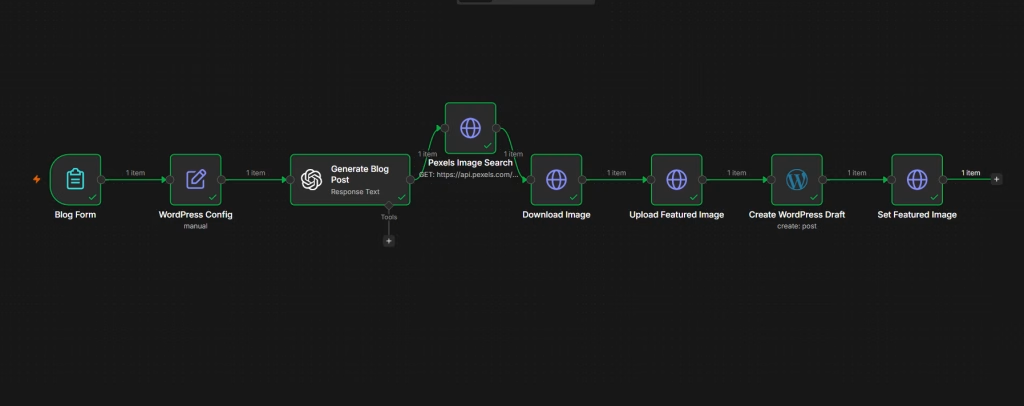
A typical draft creation workflow may follow this sequence:
- Schedule Trigger
- Read content ideas from Google Sheets or Airtable
- Filter records marked “Ready”
- Generate an outline and draft
- Generate an excerpt and meta description
- Clean and format the content
- Find or create the correct WordPress category
- Create a WordPress draft
- Write the WordPress post URL and ID back to the content calendar
- Send an approval notification to the editor
Step 7: Add Featured Images
Visual content is an important part of a modern blog. n8n can retrieve an image from a media library, stock image service, cloud storage folder, or image generation platform. The image can then be uploaded to WordPress using the media endpoint or a compatible n8n node.
Before automating images, confirm that you have the right to use them. Automatically downloading random images from search results can create copyright problems. Use licensed stock images, original graphics, or images created under terms that permit commercial publication.
Image automation should also include an accessible alternative text process. The alt text should describe the image accurately and naturally. It should not be filled with a list of keywords. Resize and compress images when possible, and use descriptive filenames that match the subject of the image.
Useful WordPress Automations With n8n
Automated Content Calendar to WordPress
A content calendar automation can turn approved rows into WordPress drafts. The workflow reads the topic, keyword, category, and author fields, then creates the post with consistent formatting. Once the post is created, n8n updates the original row with the WordPress post ID and draft link.
This prevents duplicate drafts and gives your team a central record of every article. Add a condition that checks whether the row already contains a post ID before creating a new post.
RSS Feed to WordPress Draft Workflow
If you manage an industry news website, n8n can monitor RSS feeds and collect relevant articles. The workflow can filter entries by keyword, summarize them, add a source link, and create a draft for editorial review.
This workflow should never copy another publisher’s content without permission. Use RSS automation for monitoring, research, commentary, or original summaries that add genuine value. Always identify and link to the original source when appropriate.
New WordPress Post to Social Media
After a WordPress post is published, n8n can send the title, excerpt, featured image, and URL to social media or communication tools. You can send notifications to Slack, email, Microsoft Teams, or a social scheduling platform.
Add a delay or approval step if your organization requires a final review before promotion. You can also create different messages for different platforms instead of posting the same text everywhere.
WordPress Form Submission to Email or CRM
n8n can receive information from a WordPress form and send it to an email platform, CRM, spreadsheet, or help desk. For example, a contact form submission can create a lead, notify a sales representative, and add a follow-up task.
When handling personal information, collect only what you need, protect credentials, and follow relevant privacy regulations. Avoid sending sensitive information through unsecured channels.
Broken Link and Content Maintenance Workflow
Content maintenance is another useful area for automation. n8n can read a list of important WordPress URLs, send requests to check their status, and notify you when a page returns an error. It can also remind you to review old posts, update statistics, replace outdated links, or refresh articles that have lost search visibility.
SEO Best Practices for an Automated WordPress Blog
Automation should support search engine optimization rather than produce large quantities of low-quality content. Search engines and readers value helpful, original, accurate, and well-structured information.
- Use one clear primary topic for each article.
- Write titles for readers instead of forcing keywords into awkward phrases.
- Include the primary keyword naturally in the introduction, headings, and body where relevant.
- Create useful meta descriptions that accurately summarize the page.
- Use descriptive URLs and avoid unnecessary parameters.
- Add internal links to related, authoritative pages on your website.
- Link to trustworthy external sources when they support important claims.
- Use descriptive image alt text and optimize image file sizes.
- Check mobile layout, page speed, readability, and accessibility.
- Review every automated article for accuracy and originality before publication.
n8n can help prepare SEO fields, but it cannot replace a complete SEO strategy. Keyword research, competitor analysis, content expertise, technical SEO, and audience feedback still require thoughtful human involvement.
How to Add Human Approval to n8n WordPress Workflows
The safest answer to how to automate wordpress blog management is to automate routine work while keeping important decisions under human control. Add an approval process before publication, especially when content involves health, finance, legal issues, news, or sensitive topics.
An approval workflow can send an editor an email containing the draft link and two options: approve or request changes. The editor’s response can trigger different branches in n8n. An approval branch can schedule the post, while a revision branch can update the content status in the content calendar and notify the writer.
You can also use a simple status system such as “Idea,” “In Progress,” “Needs Review,” “Approved,” “Scheduled,” and “Published.” The workflow should update statuses only after each action succeeds. This creates an audit trail and makes it easier to identify where a process stopped.
Security and Reliability Considerations
WordPress automation requires access to your website, so security should be treated as a priority. Use HTTPS, strong credentials, application passwords, and the minimum permissions necessary for each connection. Do not share credentials in screenshots, prompts, spreadsheets, or public workflow exports.
Set up error handling in n8n. A workflow should notify you if a WordPress request fails, an AI service reaches a usage limit, an image cannot be uploaded, or a required field is missing. You can use conditional branches to stop publication when the generated content is empty or when a category does not exist.
Test workflows with a staging website or a small number of drafts before connecting them to a production site. Keep backups of WordPress content and record changes to your automation. Rate-limit requests when processing many posts so that your website server and third-party APIs are not overloaded.
Common Mistakes to Avoid
- Publishing AI content without review: Generated text may contain errors, unsupported claims, or repetitive language.
- Using administrator credentials everywhere: Create a dedicated automation account with limited permissions.
- Skipping duplicate checks: Store post IDs and unique identifiers to prevent repeated drafts.
- Ignoring API limits: Large workflows may exceed limits imposed by WordPress, hosting providers, or external services.
- Overcomplicating the first workflow: Start with one simple process and expand it gradually.
- Failing to monitor errors: An automation that silently fails can cause missed publishing dates and incomplete records.
- Uploading unlicensed images: Use original or properly licensed media.
- Automating quantity instead of quality: More posts do not automatically mean better search performance.
A Practical n8n WordPress Workflow Example
Here is the practical n8n workflow example for a WordPress blogging site.